Best Local LLM: Ollama vs LM Studio
Comparing the best local LLM tools. Ollama excels for developers and APIs. LM Studio wins for Mac speed and ease. See performance data and how to choose.
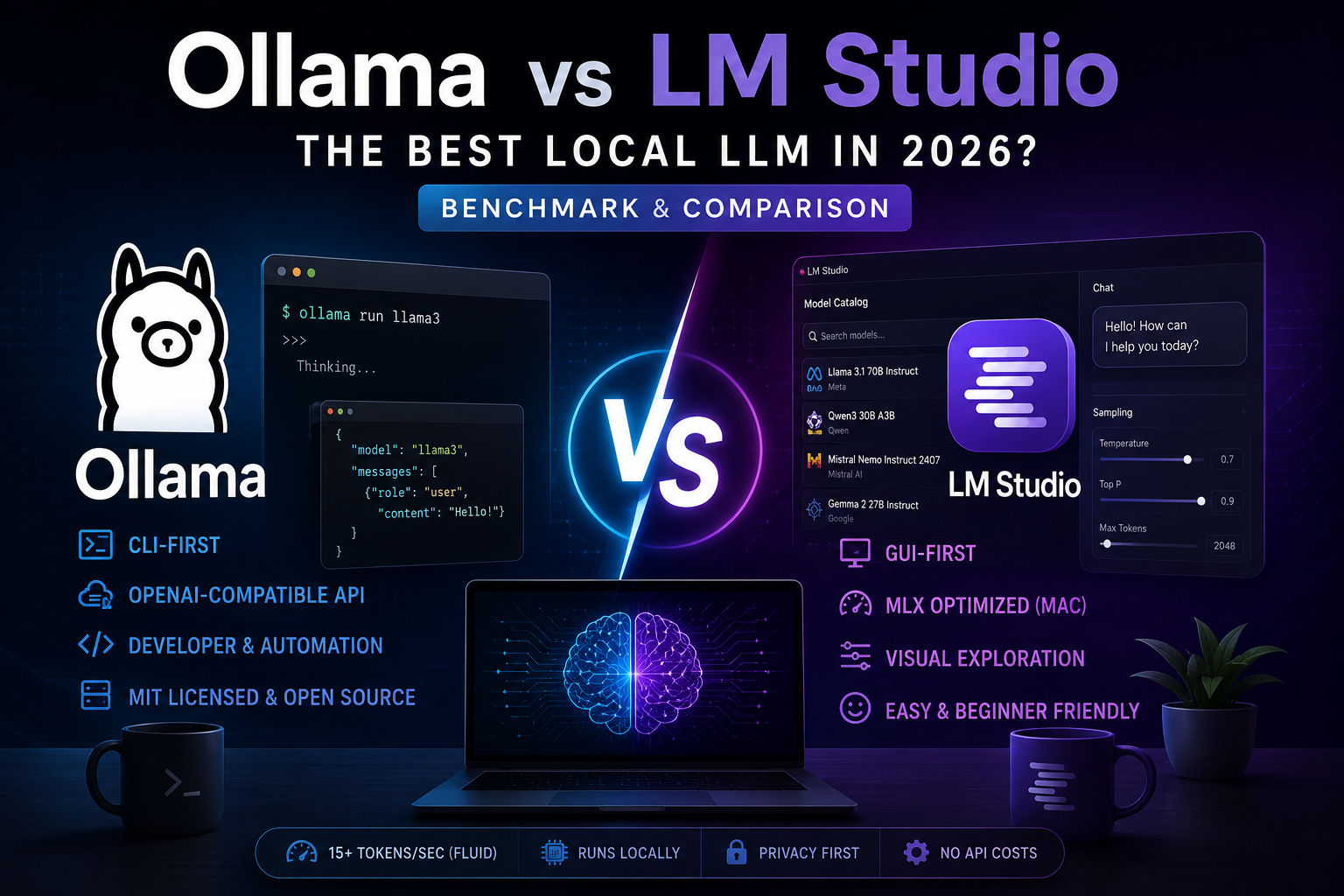
You want to run a large language model on your machine without paying cloud API fees. You've heard of Ollama and LM Studio. Both let you do this. But they're built for completely different workflows, and picking the wrong one will frustrate you.
Here's the tldr: Ollama is the best local LLM for developers and automation. <cite index="20-1">It's MIT-licensed, fully open-source, and exposes an OpenAI-compatible REST API.</cite> LM Studio is the best local LLM for anyone exploring models for the first time—it's a desktop app with a GUI and visual model discovery. This guide walks you through the real differences, performance numbers, and when to use each.
The Hook: Finding Your Best Local LLM
Let me be honest: there's no single "best" answer. What works depends on whether you're building code, learning, or just experimenting. I've spent time with both tools on different hardware, and the choice comes down to one question: do you want API-first or GUI-first?
Ollama wins on developer experience and production deployment. LM Studio wins on onboarding and visual exploration. Many serious users run both simultaneously—Ollama as the backend service, LM Studio for exploration.
Understanding the Core Difference
Both tools are frontends built on llama.cpp, an open-source C++ inference engine. The real difference is philosophical.
Ollama's philosophy: Command line. Simple. Server-oriented. Get out of the way and give developers an API.
LM Studio's philosophy: Desktop GUI. Visual. Friendly to non-technical users. Make local LLM exploration as easy as downloading Spotify.
This isn't a small distinction. It shapes everything else about how each tool works.
Performance: Who's Faster?
Here's where things get technical, so I'll keep it practical.
Ollama performance metrics:
<cite index="2-1">A typical conversation feels fluid at 15+ tokens per second. Mid-range GPUs like an RTX 3070 with 8GB VRAM typically achieve 40–80 tokens per second on a 7B model.</cite> <cite index="4-1">On higher-end hardware like an RTX 4080 with 16GB VRAM, models like GPT-OSS 20B achieve 139.93 tokens/sec.</cite>
LM Studio performance:
LM Studio uses the same llama.cpp backend on Windows and Linux, so you'd expect similar speeds. Here's the surprise: on macOS specifically, LM Studio has an advantage.
<cite index="16-1">MLX beats Ollama by 15-30% throughput on Apple Silicon and uses ~10% less memory.</cite> <cite index="13-1">Memory efficiency is more consistent for MLX. Qwen3-Coder-30B occupies 34.7 GB on MLX compared to 40 GB on GGUF, a 13% saving.</cite>
The practical takeaway: On Mac hardware, LM Studio with MLX support is noticeably faster. On Windows/Linux with NVIDIA GPUs, performance is roughly equivalent—the bottleneck is your hardware, not the tool.
Side-by-Side Comparison
| Feature | Ollama | LM Studio |
|---|---|---|
| Best For | Developers, APIs, production | Exploration, beginners, learning |
| Interface | Command line (CLI) | Desktop GUI |
| License | MIT (open-source) | Closed-source app |
| Speed | 15+ t/s (fluid), varies by hardware | 15+ t/s, 15-30% faster on macOS with MLX |
| API Support | OpenAI-compatible REST API at localhost:11434 | Limited API, mainly GUI-focused |
| Memory Efficiency | Standard GGUF format | MLX backend saves ~10% on Apple Silicon |
| Setup Time | 5 minutes (download, run text ollama run llama2 | 5 minutes (desktop app, click download) |
| Model Library | Massive (52M+ monthly pulls, 170K+ GitHub stars) | Good, integrated model discovery |
| Integration | Native REST API, works with any HTTP client | Better suited for UI/exploration |
When to Choose Ollama
Pick Ollama if any of these describe you:
-
You're building an application. You need programmatic access to your model via an API. Ollama gives you a clean REST endpoint at localhost:11434 that speaks OpenAI's API format. Any code that talks to ChatGPT can talk to Ollama with one line change.
-
You're comfortable with terminal commands. Ollama is CLI-first. You run
to download.textollama pull llama2
to start chatting.textollama run llama2
to integrate with code.textcurl http://localhost:11434/api/chat
-
You want production-grade tooling. <cite index="20-1">Ollama is MIT-licensed, fully open-source with 170K+ GitHub stars and supports quantized models for faster performance on lower-end hardware.</cite> You're not locked into a single company's GUI. You can script it, containerize it, run it on servers.
-
You need to run this on servers or in Docker. Ollama ships as a single binary. Zero dependencies beyond your GPU drivers. It's made for headless deployment.
-
You're building automation or multi-model workflows. Run Ollama in the background. Send requests from Python, JavaScript, Go—whatever. The API doesn't care.
When to Choose LM Studio
Pick LM Studio if any of these describe you:
-
You're new to local LLMs. The GUI holds your hand. Download a model, see a progress bar, start chatting instantly. No terminal commands. No environment variables. No mystery.
-
You're on macOS and want maximum speed. LM Studio's MLX integration is the easiest way to get 15-30% faster inference on Apple Silicon. <cite index="15-1">MLX is incredibly efficient because it's tailored for Apple Silicon, leveraging its unified memory architecture. Sharing memory between the CPU and GPU eliminates the need for data copying.</cite>
-
You want to visually explore models and parameters. Change temperature, context window, sampling settings—all in the GUI. See sliders adjust in real time. No YAML files or environment variables.
-
You prefer clicking to typing. LM Studio's model discovery is visual. Search by name, see descriptions, read reviews from the community. Then click "Download."
-
You want a polished, native desktop experience. LM Studio feels like a real Mac/Windows app. Ollama feels like what it is: a server running on your machine.
The Missing Feature: Benchmarking on Your Hardware
Here's something both tools get wrong: neither makes it trivial to benchmark models on your specific hardware.
Your RTX 4070 won't perform like my M4 Max. Your CPU-only setup is a different universe. <cite index="5-1">Different models (Mistral, Codestral, Llama, DeepSeek, Qwen) perform very differently. Quantization (q4 vs q5, etc.) changes both memory footprint and speed. The whole point is to test on your local system and see what works for you.</cite>
My advice: Download Ollama or LM Studio tonight. Run
ollama run mistral:7b-instruct
Installation & First Run (It's Fast)
Ollama:
- Visit ollama.ai
- Download the installer for your OS
- Run: text
ollama run llama2
- Chat with the model in your terminal
That's it. The model downloads automatically on first run (varies by model size—7B models are 4-5 GB).
LM Studio:
- Visit lmstudio.ai
- Download the desktop app
- Install and launch
- Click "Download Model"
- Pick a model (search "Llama 2" or "Mistral")
- Wait for download, then chat
Both take about 5 minutes soup-to-nuts.
The Integration Question: API vs GUI
This is where the tools diverge most.
Ollama gives you a server. You run it once, and it sits in the background. Any application can talk to it via HTTP. You could build a web interface, integrate it with an automation workflow, embed it in a Python script, or chain it with other tools.
LM Studio gives you an application. It's beautiful to use directly. But integrating it into external workflows takes more work. The API support exists, but it's more GUI-focused than infrastructure-focused.
Real example: You want to build an AI agent that responds to emails using a local model. With Ollama, you'd write a Python script that makes HTTP requests to localhost:11434. The model runs. You get responses. You route them to your email system. Done in an afternoon.
With LM Studio, you'd spend that afternoon figuring out how to route requests to the GUI application or use its limited CLI options.
Memory Efficiency on Apple Silicon
If you're on a Mac, this matters.
<cite index="12-1">Apple Silicon's unified memory architecture eliminates the bottleneck of discrete GPU VRAM. The CPU, GPU, and Neural Engine all share a single high-bandwidth memory pool. The M2 Ultra and M3 Ultra configurations offer up to 192GB of unified memory, enough to hold a full 70B model at higher quantization levels.</cite>
LM Studio with MLX leverages this brilliantly. The MLX framework is Apple's native machine learning library, and LM Studio uses it as an optional backend. <cite index="13-1">Starting with Ollama v0.19.0, Ollama automatically routes requests based on model format: GGUF files use llama.cpp (Metal backend), while safetensors files use MLX.</cite>
Translation: Ollama got better on Mac. But LM Studio's MLX integration is still simpler to enable and more transparent in the UI.
Quantization & Model Size
Both tools support quantized models. A quantized model is a smaller, faster version of the original. Think of it like lossy image compression—smaller file, minimal quality loss.
<cite index="8-1">Model quantization reduces the memory footprint of LLMs without significantly compromising performance. Ollama supports various quantization formats, such as Q4_0 and Q4_1, which represent lower-precision versions of the model's weights.</cite>
Practical numbers:
- A full-precision Llama 2 7B model: ~13 GB
- Quantized Q4 version: ~4 GB
- Quantized Q5 version: ~5-6 GB
Smaller = faster + lower memory. The tradeoff is minimal for most use cases. Quality difference between Q4 and full precision? Most users don't notice.
LM Studio makes quantization selection visual (you see options in a dropdown). Ollama requires knowing the model tag (e.g.,
ollama run llama2:7b-q4
Open Source vs Closed Source
Ollama is fully open source under the MIT license. You can read the code, modify it, run it offline, host it on your servers. No licensing restrictions.
LM Studio's application is closed source, but it supports open models and doesn't lock you in. Your data stays local either way.
If you care about transparency, reproducibility, or the ability to modify the tool itself, Ollama wins. If you just want something that works, LM Studio is fine.
The Pro Tip: Run Both
Seriously. This is what I do.
Ollama runs in the background as a service on localhost:11434. Fast, lean, ready for API calls. When I want to explore a new model or tweak parameters visually, I launch LM Studio. Point it at Ollama's backend if I want, or use its own inference engine.
They don't conflict. Ollama takes maybe 80 MB of RAM at idle. LM Studio's GUI only loads when you launch it. You get the benefits of both: a solid API backend + a friendly exploration interface.
Common Mistakes to Avoid
Mistake 1: Running a model that doesn't fit your VRAM.
If your GPU has 6 GB of VRAM, a 13B model might overflow to slow CPU RAM. You'll think the tool is broken. You're not—you just need a 7B quantized model instead.
Mistake 2: Confusing quantization with quality.
Q4 quantization feels nearly identical to full precision for most tasks. Stop obsessing and just try it.
Mistake 3: Not benchmarking on your actual hardware.
GPU/CPU/RAM combinations vary wildly. A benchmark on someone's RTX 4090 means nothing for your M3 MacBook. Test locally.
Mistake 4: Forgetting that the best local LLM is the one you'll actually use.
Ollama is objectively better for developers. But if you never open the terminal, LM Studio wins because you'll actually run it.
Should You Care About LLM Agents?
If you're interested in how AI agents work and want to run them locally, this is crucial. <cite index="36-1">AI agents carry governance risks and liability concerns that enterprises are just beginning to understand.</cite> Running agents locally (with Ollama's API) is actually one way to reduce that risk—you control the model, you control the data flow, no third-party API involved.
LM Studio can run models for agents, but it's less natural than Ollama's API-first design.
Real-World Decision Tree
Are you a developer? → Ollama
Are you on Mac and want visual control? → LM Studio with MLX
Are you exploring for the first time? → LM Studio
Do you need to integrate with other tools? → Ollama
Do you want maximum performance on Apple Silicon? → LM Studio (MLX backend)
Are you running on a server or in Docker? → Ollama
The Bottom Line: Pick Your Best Local LLM
The best local LLM depends on your workflow. Ollama is production-ready, API-first, and perfect for developers who know the terminal. <cite index="20-1">It's MIT-licensed, fully open-source, with 52M+ monthly model pulls and 170K+ GitHub stars.</cite> You get a clean API, headless deployment, and complete control.
LM Studio is approachable, visual, and exceptional on macOS. The GUI feels native. MLX support on Apple Silicon is legitimately faster than Ollama's llama.cpp backend. If you want to explore models without touching the command line, LM Studio is your answer.
Neither tool is objectively better. Pick based on what you'll actually use. Download one tonight and spend fifteen minutes with it. That's more valuable than any benchmark.
The real test isn't tokens per second. It's whether you'll keep using it next month.
Pro tip: Run Ollama as your background service. Launch LM Studio when you want to experiment. Both take seconds to set up. Both are free. Both respect your privacy by running everything locally. There's no wrong choice—only the one that fits your workflow better.
Most People Asked
CS student and builder writing about tech, startups, AI, and productivity. Built a SaaS that didn't ship — walked away with real product experience instead. Sharing everything learned along the way.